

Learn how to set up and use DeepWalk's Flex Solution, from creating an account and organization to scanning, exploring demo projects, and using measurement tools to analyze your data.
0:00 Hi all. It’s Abi from DeepWalk, and today I will be showing you how to create and test out our Flex Solution
0:07 So if you go to our solutions page on our website and get started today, it’ll allow you to get started with flex
0:16 Once you are on our web application, you can sign in with an existing account or create a new one, which I am doing here. You enter your email address as well as a password that aligns to the requirements listed below.
0:43 Then you add your information here to complete your profile.
1:03 Before you are able to use DeepWalk, you must create an organization.
1:16 Now, you can create your Flex project. Create a project and it will allow you to select what type of project you would like to do. Select Flex, and press next, and then you are going to give it a name. Now we are going to ask for additional data collection information to best equip our team to help your project.
1:49 Now, if the information is accurate, you can configure your project and begin scanning on DeepWalk’s mobile app.
1:57 If you want to try out Flex without going out and scanning on our mobile app, you can add a demo project to your organization. It takes a few minutes to populate, so give it time.
2:11 It will appear in your project list and you are able to open that and explore some DeepWalk scans.
2:26 To navigate to Flex, you are going to go to the collection map page. Press on a scan you would like to review and on the right hand side, you will see a button to view in Flex. Here you are able to use our area measurements and length measurements tools to look at specific panels of the scan.
2:53 Finally, you are able to download the annotated image as a PNG. And, you officially have a flex project and experience on how to use it. Don’t hesitate to reach out to us via email or our website if you have any questions. Thanks!
Map the current sidewalk mileage in your city, town, neighborhood, or custom area. Our new mileage tool pulls accurate sidewalk information, allowing you to plan efficiently, budget effectively, and determine the amount of data collectors for your project. The data is sourced from OpenStreetMap, a free, collaborative mapping platform built and maintained by contributors worldwide.
Get A Free Mileage Estimate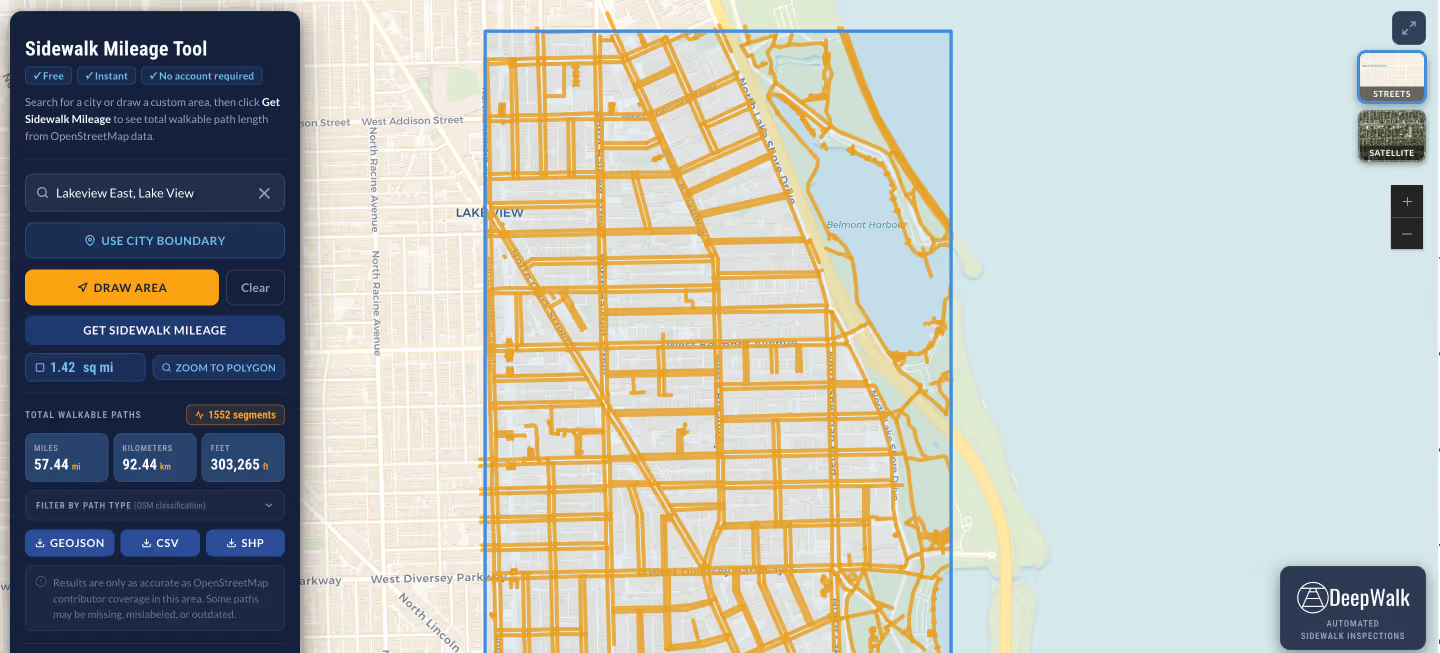
.avif)
DeepWalk is the sidewalk inspection solution trusted by 120+ municipalities and consultants nationwide.
© 2026 DeepWalk Research, Inc.
All rights reserved.