

DeepWalk's Implement tools take your sidewalk scan data and turn it into a structured, actionable repair program. Starting from your identified hazard inventory, you can filter your network by area, review first-person imagery of trip hazards, and define your program scope. From there, assign the right treatment type to each hazard, whether that's cold patch, grind, mudjacking, sawcut, or a custom solution, and attach cost estimates to each treatment so your program stays within budget before a single repair order goes out. Once finalized, activate your program and your team can track repair status, log notes, and upload media as work progresses, all in one platform. From scan to funded, managed repair program, DeepWalk keeps every step in a single workflow.
Transcript
00:00 Hi there! Today, I will be showing you our improved implement tools and how to create a program.
00:05 First navigate to the ‘Create’ tab under the implement section. In here you will be able to create different programs to repair your sidewalks. We currently have a hazard removal program but more will be coming in the future
00:18 To create a hazard removal program, press ‘select.’ In here, you will see your identified hazards in your sidewalk network. You are able to filter and select a specific area you want to address in this program.
00:32 For the purpose of this demo, we will be looking at trip hazards. Once you’ve sleected an area, you are able to review the first-person images of the trip hazards. You are able to open this image full screen and toggle the icon indicating the exact position of the trip hazard.
00:49 Once you have selected and reviewed your program area, you are able to enter a name, and add important notes for your team or other important stakeholders. You are also able to add a ‘pricing effective as of’ date for the treatment types, and then you add a targeted completion date for this program.
01:15 Press create and now you are in the stage determine what treatment typoes should be used to address the sidewalk issue. We understand that different barrier require different solutions. So in this stage, you are able to choose cold patch, grind, mudjacking, replace, sawcut, and other custom solutions that your team uses. You are also able to choose no treatment for detected hazards that do not need to be addressed at this time.
01:45 We’ve introduced the capability to add cost estimates to the treatment type. This way as you are creating your program, you can build one that fits within your budgetary limits.
02:00 Some other key features to mention at this stage is that you can change your scoring configuration. Uou can also sort the map by review status or feature type.
02:15 The program automatically saves as you create it, however we have a save draft button if needed. Once the program is finalized, you are able to activate it. Once activated, your program can be reviewed, exported, and shared with your team to start the sidewalk repairs. You are able to filter, review, and update repair status and add additional notes or media as your project progresses.
2:42 All of the programs can be found in the ‘Programs’ tab. This includes all stages, but if you’ve created programs with our previous implement tool, please go to the ‘legacy programs’ tab. Now you’ve officially created your first program.
02:56 The last piece I want to show you today is how to customize your treatment types. Go to the treatment types tab, in here you will be able to add new custom treatments, set the cost estimate, and edit for future programs.
03:15 Thank you for joining me today. To get more details on how to use this for your upcoming project, reach out to us via our website and we’ll set up a time to chat.
Map the current sidewalk mileage in your city, town, neighborhood, or custom area. Our new mileage tool pulls accurate sidewalk information, allowing you to plan efficiently, budget effectively, and determine the amount of data collectors for your project. The data is sourced from OpenStreetMap, a free, collaborative mapping platform built and maintained by contributors worldwide.
Get A Free Mileage Estimate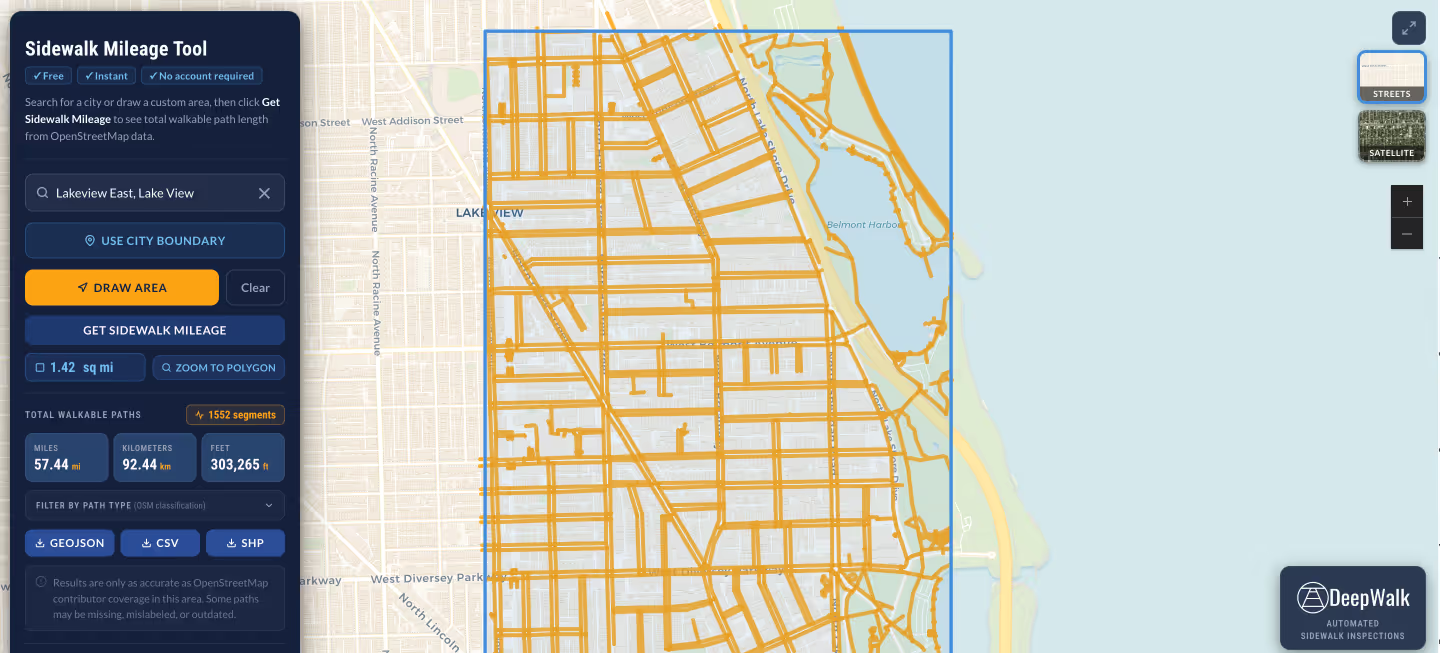
.avif)
DeepWalk is the sidewalk inspection solution trusted by 120+ municipalities and consultants nationwide.
© 2026 DeepWalk Research, Inc.
All rights reserved.